【教學神助攻】斷網也不怕!「一鍵 HTML 產生器」把備課時間還給自己!⏳
貼入程式碼,左側即時預覽,一鍵打包成離線可用的 .html 檔。從此不用再看學校 WiFi 的臉色!
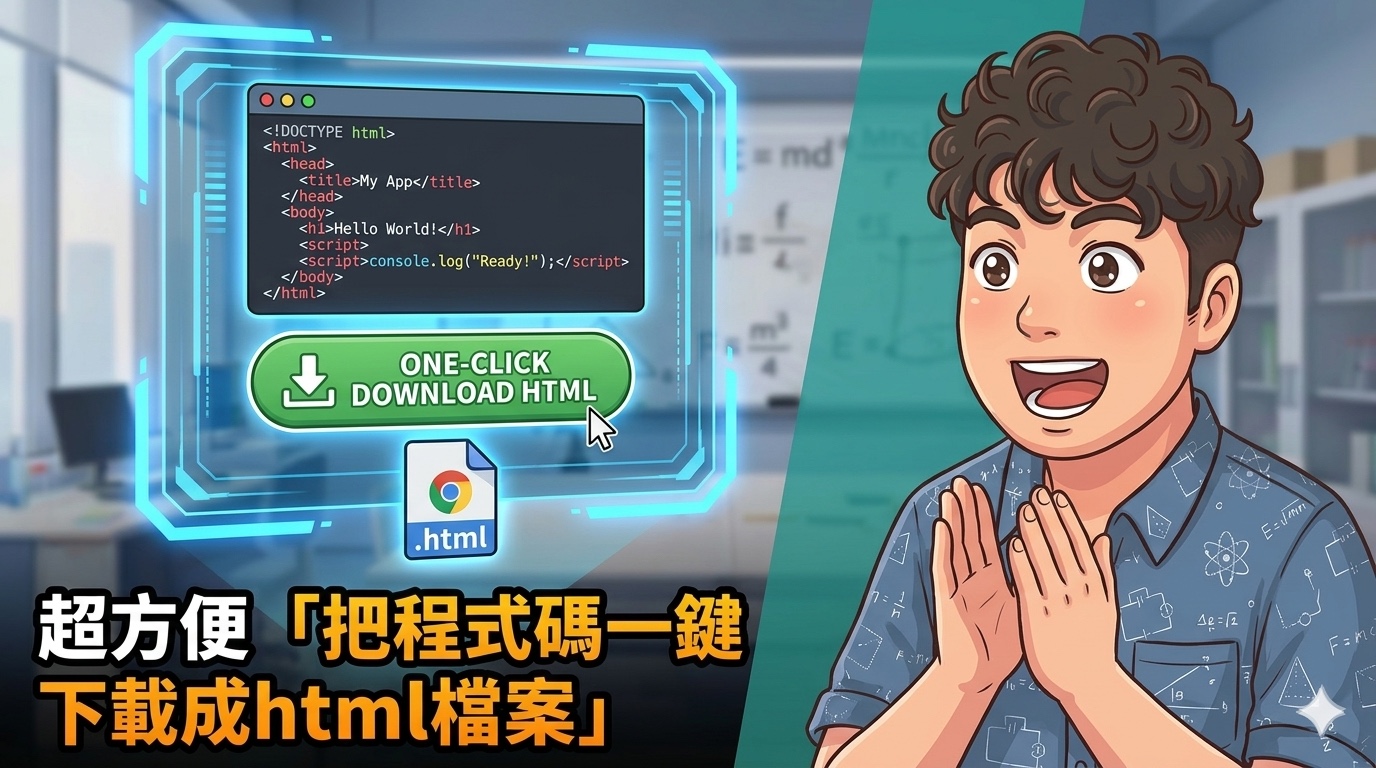
每次想做個好玩的「互動式模擬」網頁給學生操作,光是搞定 HTML、CSS 和 JavaScript 骨架就耗掉大半精力嗎?或者,好不容易做好了網頁,卻總是擔心上課時教室網路不給力,畫面轉個不停?
老師們,你們的備課焦慮我們聽到了!
✨ 四大核心亮點
為了把時間與課堂掌控權還給老師,這款「一鍵 HTML 產生器」專為教學現場設計,不需要複雜的環境設定,只要輸入你的互動需求,它就能成為你的最強助教:
.html 檔案,整個流程不超過 3 秒。📋 三步驟使用流程
先從四步驟 AI 提示詞教學指南學習如何請 AI 生成互動模擬,再用這個工具把程式碼打包成可離線使用的獨立檔案,完美流程!
🚀 立即試用
好用的工具,就該在教育現場發揮最大價值。馬上來體驗一鍵生成、離線展示的極致順暢感!
💡 在右側面板貼入 HTML 程式碼 → 點「在左側預覽」確認畫面 → 點「打包下載」取得離線檔案
🔓 完整開源程式碼
以下是「一鍵 HTML 產生器」的完整原始碼。純 HTML 單一檔案,零外部依賴,複製後直接在瀏覽器開啟即可使用。
<!DOCTYPE html>
<html lang="zh-TW">
<head>
<meta charset="UTF-8">
<meta name="viewport" content="width=device-width, initial-scale=1.0">
<title>一鍵 HTML 產生器 互動式模擬實驗室</title>
<style>
@import url('https://fonts.googleapis.com/css2?family=Noto+Sans+TC:wght@400;500;700&display=swap');
:root {
--brand-primary: #657954;
--action-blue: #3B82F6;
--bg-light: #F8FAFC;
--text-main: #1E293B;
--canvas-dark: #111827;
--border-radius-panel: 12px;
--box-shadow-standard: 0 4px 6px -1px rgba(0, 0, 0, 0.1);
--bg-panel: #ffffff;
--border-light: #E2E8F0;
--text-muted: #64748b;
--danger-red: #ef4444;
--warning-amber: #f59e0b;
}
* { box-sizing: border-box; margin: 0; padding: 0; }
html, body {
width: 100%; height: 100%;
font-family: 'Noto Sans TC', sans-serif;
background-color: var(--bg-light); color: var(--text-main);
overflow: hidden;
}
.app-shell { display: flex; width: 100%; height: 100%; flex-direction: row; }
.canvas-container {
flex: 1; position: relative; background-color: #ffffff;
display: flex; flex-direction: column;
}
canvas { display: block; width: 100%; height: 100%; touch-action: none; }
.control-panel {
width: 380px; background-color: var(--bg-panel);
border-left: 1px solid var(--border-light);
box-shadow: -2px 0 10px rgba(0, 0, 0, 0.03);
display: flex; flex-direction: column; z-index: 10;
}
.mobile-toggle {
display: none; justify-content: space-between; align-items: center;
padding: 12px 20px; background-color: var(--brand-primary);
color: #ffffff; font-weight: 700; font-size: 1.1rem;
cursor: pointer; box-shadow: 0 -2px 10px rgba(0, 0, 0, 0.1);
}
.panel-content {
padding: 20px; overflow-y: auto; flex: 1;
display: flex; flex-direction: column; gap: 20px;
}
.panel-header-desktop {
font-size: 1.3rem; font-weight: 700; color: var(--brand-primary);
padding-bottom: 12px; border-bottom: 2px solid var(--brand-primary);
margin-bottom: 5px;
}
.data-display { display: flex; gap: 10px; font-family: monospace; font-size: 0.9rem; flex-wrap: wrap; }
.value-box { background: var(--bg-light); padding: 6px 10px; border-radius: 6px; border: 1px solid var(--border-light); font-weight: 500; }
.value-box span { color: var(--action-blue); font-weight: 700; }
.controls-group { background-color: var(--bg-light); padding: 15px; border-radius: var(--border-radius-panel); border: 1px solid var(--border-light); display: flex; flex-direction: column; gap: 15px; }
.control-row { display: flex; align-items: center; gap: 12px; flex-wrap: wrap; }
.control-row label { min-width: 60px; font-weight: 700; font-size: 0.95rem; }
.slider-container { flex-grow: 1; display: flex; align-items: center; gap: 10px; }
input[type="range"] { flex-grow: 1; height: 6px; border-radius: 5px; background: var(--border-light); outline: none; -webkit-appearance: none; }
input[type="range"]::-webkit-slider-thumb { -webkit-appearance: none; width: 18px; height: 18px; border-radius: 50%; background: var(--brand-primary); cursor: pointer; transition: transform 0.1s; }
input[type="range"]::-webkit-slider-thumb:hover { transform: scale(1.15); }
button { padding: 10px 16px; background-color: var(--action-blue); color: white; border: none; border-radius: 6px; cursor: pointer; font-weight: 700; font-family: inherit; transition: opacity 0.2s, transform 0.1s; box-shadow: var(--box-shadow-standard); }
button:hover { opacity: 0.85; transform: translateY(-1px); }
button:active { transform: translateY(1px); }
button.btn-danger { background-color: var(--danger-red); }
.status-row { font-size: 0.95rem; color: var(--text-muted); background: #fff; padding: 10px; border-radius: 8px; border: 1px solid var(--border-light); line-height: 1.6; }
.status-row span { font-weight: 700; }
@media (max-width: 768px) {
.app-shell { flex-direction: column; }
.canvas-container { flex: 1; height: 0; }
.control-panel {
width: 100%; flex: none; border-left: none;
border-top-left-radius: 16px; border-top-right-radius: 16px;
box-shadow: 0 -4px 15px rgba(0, 0, 0, 0.15);
max-height: 65vh; transition: max-height 0.3s cubic-bezier(0.4, 0, 0.2, 1);
}
.control-panel.collapsed { max-height: 52px; }
.mobile-toggle { display: flex; border-top-left-radius: 16px; border-top-right-radius: 16px; }
.panel-header-desktop { display: none; }
}
/* 此工具新增之專屬 CSS */
.custom-input {
flex-grow: 1;
padding: 8px 12px;
border: 1px solid var(--border-light);
border-radius: 6px;
font-family: inherit;
font-size: 0.95rem;
outline: none;
transition: border-color 0.2s;
}
.custom-input:focus { border-color: var(--brand-primary); }
.custom-textarea {
width: 100%;
height: 300px;
padding: 12px;
border: 1px solid var(--border-light);
border-radius: 6px;
font-family: 'Courier New', Courier, monospace;
font-size: 0.9rem;
resize: vertical;
outline: none;
background-color: #fafafa;
white-space: pre;
overflow-x: auto;
color: var(--text-main);
box-shadow: inset 0 2px 4px rgba(0,0,0,0.02);
}
.custom-textarea:focus {
border-color: var(--brand-primary);
background-color: #ffffff;
}
.custom-textarea::-webkit-scrollbar { width: 8px; height: 8px; }
.custom-textarea::-webkit-scrollbar-track { background: var(--bg-light); border-radius: 4px; }
.custom-textarea::-webkit-scrollbar-thumb { background: #cbd5e1; border-radius: 4px; }
.custom-textarea::-webkit-scrollbar-thumb:hover { background: #94a3b8; }
.preview-iframe {
position: absolute;
top: 0; left: 0;
width: 100%; height: 100%;
border: none;
background-color: #ffffff;
z-index: 5;
display: none;
}
.hint-text {
font-size: 0.8rem;
color: var(--text-muted);
margin-top: -5px;
margin-bottom: 5px;
}
</style>
</head>
<body>
<div class="app-shell">
<div class="canvas-container" id="canvas-wrapper">
<canvas id="simCanvas"></canvas>
<!-- 左側全螢幕預覽沙盒 -->
<iframe id="mainPreviewFrame" class="preview-iframe"></iframe>
</div>
<div class="control-panel collapsed" id="controlPanel">
<div class="mobile-toggle" id="panelToggle">
<span>一鍵 HTML 產生器</span>
<span id="toggleIcon">▼</span>
</div>
<div class="panel-content">
<div class="panel-header-desktop">一鍵 HTML 產生器</div>
<div id="dynamic-controls-area">
<div class="controls-group">
<div class="control-row">
<label>檔案名稱</label>
<input type="text" id="filenameInput" value="physics-sim.html" class="custom-input" placeholder="例如: index.html">
</div>
<div class="control-row" style="flex-direction: column; align-items: stretch; gap: 8px;">
<label>請貼上完整程式碼</label>
<textarea id="codeInput" class="custom-textarea" spellcheck="false" placeholder="<!DOCTYPE html> <html lang='zh-TW'> ... </html>"></textarea>
</div>
<div style="display: flex; gap: 10px;">
<button id="previewBtn" style="flex: 1; background-color: var(--action-blue);">👁️ 在左側預覽</button>
<button id="downloadBtn" style="flex: 1; background-color: var(--brand-primary);">⬇️ 打包下載</button>
</div>
<button id="closePreviewBtn" style="display: none; width: 100%; background-color: var(--danger-red); font-size: 0.9rem; padding: 6px;">❌ 關閉預覽</button>
<div class="status-row" id="statusBox">
狀態:<span>等待輸入... 🧑💻</span>
</div>
</div>
</div>
</div>
</div>
</div>
<script id="core-ui-logic">
const panelToggle = document.getElementById('panelToggle');
const controlPanel = document.getElementById('controlPanel');
const toggleIcon = document.getElementById('toggleIcon');
const simCanvas = document.getElementById('simCanvas');
let simWidth = 0, simHeight = 0;
panelToggle.addEventListener('click', () => {
controlPanel.classList.toggle('collapsed');
toggleIcon.innerText = controlPanel.classList.contains('collapsed') ? '▲' : '▼';
setTimeout(resizeCanvas, 300);
});
function resizeCanvas() {
const simRect = simCanvas.parentElement.getBoundingClientRect();
simWidth = simRect.width;
simHeight = simRect.height;
simCanvas.width = simWidth;
simCanvas.height = simHeight;
window.dispatchEvent(new Event('canvasResized'));
}
window.addEventListener('resize', resizeCanvas);
setTimeout(resizeCanvas, 50);
</script>
<script id="physics-logic">
const simCtx = simCanvas.getContext('2d');
// --- HTML 下載與預覽功能邏輯 ---
const downloadBtn = document.getElementById('downloadBtn');
const previewBtn = document.getElementById('previewBtn');
const closePreviewBtn = document.getElementById('closePreviewBtn');
const codeInput = document.getElementById('codeInput');
const filenameInput = document.getElementById('filenameInput');
const statusBox = document.getElementById('statusBox');
const mainPreviewFrame = document.getElementById('mainPreviewFrame');
// 左側全螢幕即時預覽
previewBtn.addEventListener('click', () => {
const codeContent = codeInput.value;
if (!codeContent.trim()) {
statusBox.innerHTML = `狀態:<span style="color: var(--danger-red);">請先貼上程式碼!無法預覽空白檔案。</span>`;
codeInput.style.borderColor = 'var(--danger-red)';
setTimeout(() => codeInput.style.borderColor = 'var(--border-light)', 1000);
return;
}
try {
mainPreviewFrame.style.display = 'block';
closePreviewBtn.style.display = 'block';
mainPreviewFrame.srcdoc = codeContent;
statusBox.innerHTML = `狀態:<span style="color: var(--action-blue);">👁️ 預覽已顯示於左側畫布!</span>`;
} catch (error) {
statusBox.innerHTML = `狀態:<span style="color: var(--danger-red);">預覽發生錯誤:${error.message}</span>`;
}
});
// 關閉預覽
closePreviewBtn.addEventListener('click', () => {
mainPreviewFrame.style.display = 'none';
mainPreviewFrame.srcdoc = '';
closePreviewBtn.style.display = 'none';
statusBox.innerHTML = `狀態:<span>預覽已關閉,返回待命狀態。</span>`;
});
// 下載功能
downloadBtn.addEventListener('click', () => {
const codeContent = codeInput.value;
let filename = filenameInput.value.trim();
if (!filename) filename = 'simulation.html';
if (!filename.toLowerCase().endsWith('.html')) filename += '.html';
if (!codeContent.trim()) {
statusBox.innerHTML = `狀態:<span style="color: var(--danger-red);">請先貼上程式碼!無法產生空白檔案。</span>`;
codeInput.style.borderColor = 'var(--danger-red)';
setTimeout(() => codeInput.style.borderColor = 'var(--border-light)', 1000);
return;
}
try {
const blob = new Blob([codeContent], { type: 'text/html;charset=utf-8' });
const downloadLink = document.createElement('a');
downloadLink.href = URL.createObjectURL(blob);
downloadLink.download = filename;
document.body.appendChild(downloadLink);
downloadLink.click();
document.body.removeChild(downloadLink);
URL.revokeObjectURL(downloadLink.href);
statusBox.innerHTML = `狀態:<span style="color: var(--brand-primary);">🎉 下載成功!(${filename})</span>`;
createBurstParticles();
} catch (error) {
statusBox.innerHTML = `狀態:<span style="color: var(--danger-red);">發生錯誤:${error.message}</span>`;
}
});
// --- 背景視覺特效:程式碼粒子飄動 ---
const symbols = ['<html>', 'F=ma', '{...}', 'E=mc²', '</>', 'Δx', 'JS', 'ΣF=0', 'CSS', 'λ'];
let particles = [];
class Particle {
constructor() { this.reset(true); }
reset(randomHeight = false) {
this.x = Math.random() * simWidth;
this.y = randomHeight ? Math.random() * simHeight : simHeight + 50;
this.text = symbols[Math.floor(Math.random() * symbols.length)];
this.size = Math.random() * 15 + 12;
this.speedY = -(Math.random() * 0.8 + 0.2);
this.opacity = Math.random() * 0.3 + 0.1;
this.color = Math.random() > 0.5 ? '#657954' : '#3B82F6';
}
update() {
this.y += this.speedY;
if (this.y < -50) this.reset();
}
draw(ctx) {
ctx.font = `bold ${this.size}px monospace`;
ctx.fillStyle = this.color;
ctx.globalAlpha = this.opacity;
ctx.fillText(this.text, this.x, this.y);
ctx.globalAlpha = 1.0;
}
}
function initParticles() {
particles = [];
for (let i = 0; i < 30; i++) particles.push(new Particle());
}
function createBurstParticles() {
for (let i = 0; i < 20; i++) {
let p = new Particle();
p.x = simWidth / 2 + (Math.random() - 0.5) * 200;
p.y = simHeight;
p.speedY = -(Math.random() * 3 + 2);
p.opacity = 0.6;
particles.push(p);
}
if (particles.length > 80) particles.splice(0, particles.length - 50);
}
window.addEventListener('canvasResized', () => {
if (particles.length === 0 && simWidth > 0) initParticles();
});
function animate() {
simCtx.fillStyle = '#F8FAFC';
simCtx.fillRect(0, 0, simWidth, simHeight);
particles.forEach(p => { p.update(); p.draw(simCtx); });
simCtx.fillStyle = 'rgba(101, 121, 84, 0.05)';
simCtx.font = 'bold 80px "Noto Sans TC"';
simCtx.textAlign = 'center';
simCtx.textBaseline = 'middle';
simCtx.fillText('AI x Physics', simWidth / 2, simHeight / 2 - 40);
simCtx.font = 'bold 40px "Noto Sans TC"';
simCtx.fillText('Code Compiler', simWidth / 2, simHeight / 2 + 30);
simCtx.textAlign = 'left';
simCtx.textBaseline = 'alphabetic';
simCtx.fillStyle = 'rgba(150, 150, 150, 0.5)';
const waterMarkSize = Math.max(12, Math.min(20, simWidth * 0.02));
simCtx.font = `${waterMarkSize}px "Noto Sans TC"`;
const text = '© 阿偉的物理 x AI實驗室';
const textWidth = simCtx.measureText(text).width;
simCtx.fillText(text, simWidth - textWidth - 15, simHeight - 15);
requestAnimationFrame(animate);
}
animate();
</script>
</body>
</html>
💡 複製後新建一個 .html 檔案並貼上,直接用瀏覽器開啟即可使用,無需安裝任何套件!
🎯 讓每一堂課都精彩,從好工具開始
如果你是第一次嘗試自製互動教材,建議先從
四步驟 AI 提示詞教學指南
開始,學會如何讓 AI 幫你生成物理模擬動畫的程式碼。
接著再用這個「一鍵 HTML 產生器」把程式碼轉換成獨立的 .html 檔,帶進任何教室,完全不受網路限制。
教育創新不需要昂貴的軟體授權,只需要一個瀏覽器和你的創意!